2.5 KiB
SubProcess Node
Overview
The sub-process node is to execute an external workflow definition as a task node.
Create Task
- Click
Project Management -> Project Name -> Workflow Definition, and click theCreate Workflowbutton to enter the DAG editing page. - Drag from the toolbar
 task node to canvas to create a new SubProcess task.
Task Parameter
- Please refer to DolphinScheduler Task Parameters Appendix
Default Task Parameterssection for default parameters.
| Parameter | Description |
|---|---|
| Child node | It is the workflow definition of the selected sub-process. Enter the child node in the upper right corner to jump to the workflow definition of the selected sub-process. |
Task Example
This example simulates a common task type, here we use a child node task to recall the Shell to print out "hello". This means executing a shell task as a child node.
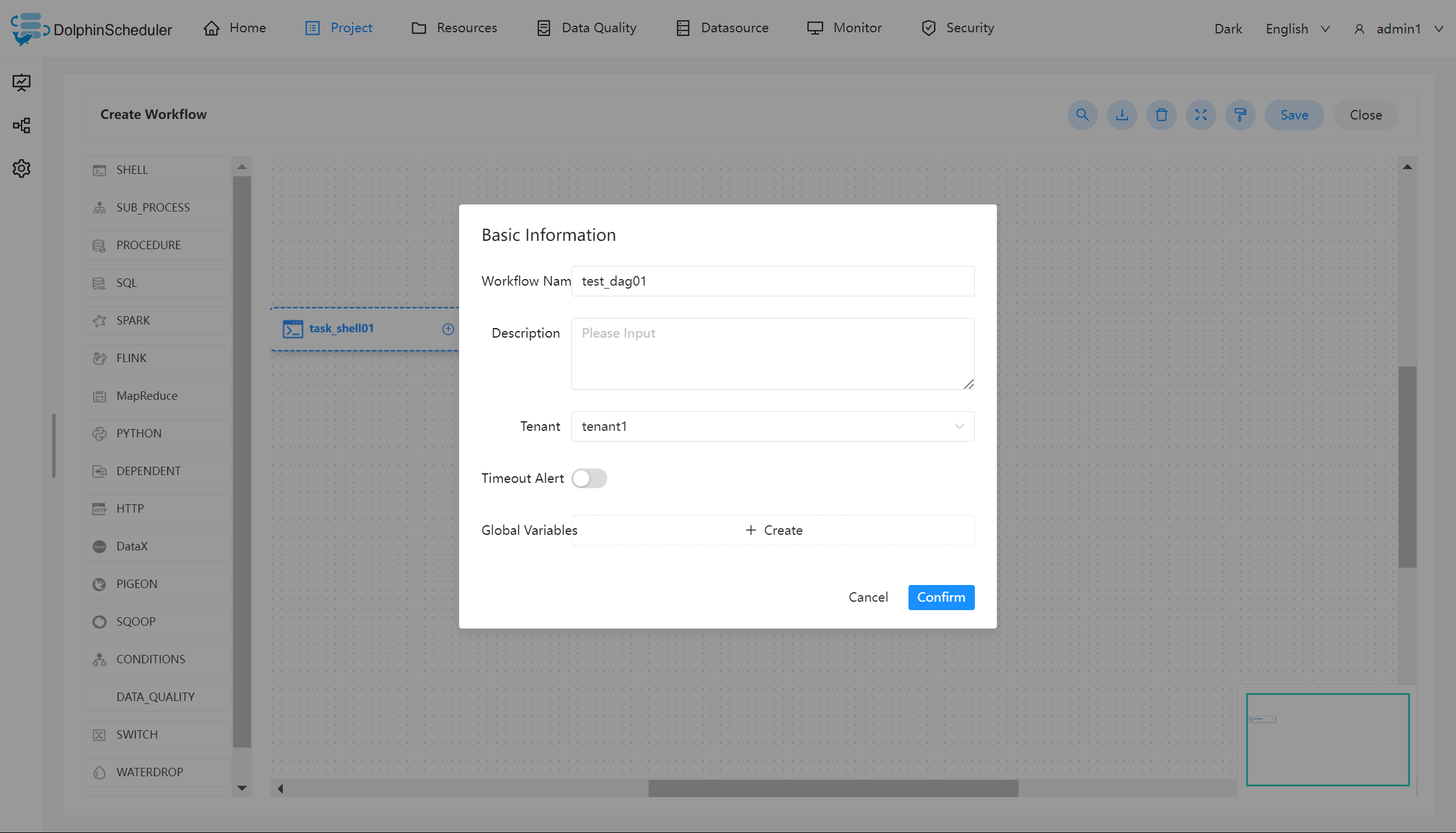
Create a Shell task
Create a shell task to print "hello" and define the workflow as test_dag01.
Create the Sub_process task
To use the sub_process, you need to create the sub-node task, which is the shell task we created in the first step. After that, as shown in the diagram below, select the corresponding sub-node in position ⑤.
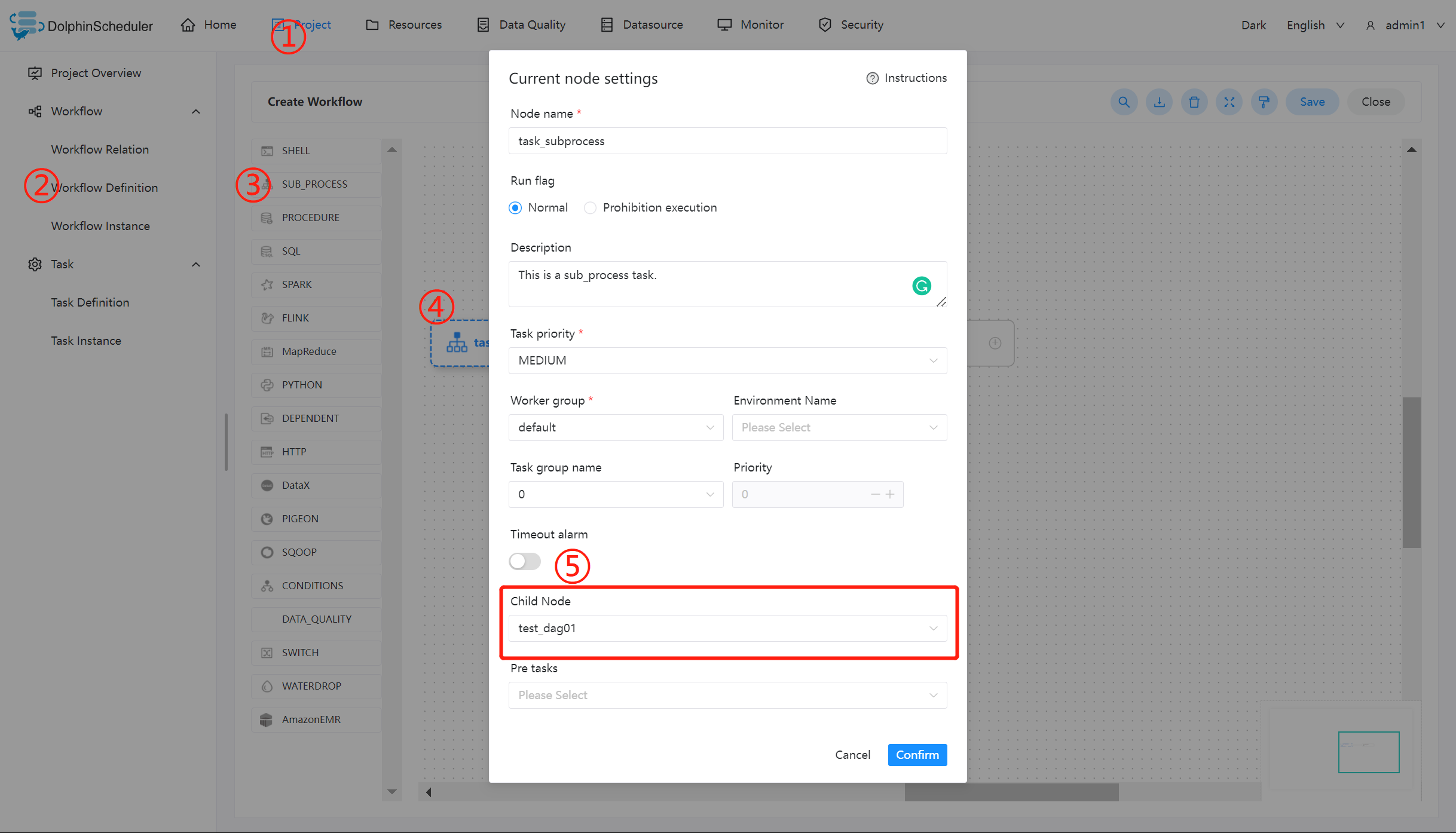
After creating the sub_process, create a corresponding shell task for printing "world" and link both together. Save the current workflow and run it to get the expected result.

Note
When using sub_process to recall a sub-node task, you need to ensure that the defined sub-node is online status, otherwise, the sub_process workflow will not work properly.